How do I view manage email templates list in the engine?
| 1. | Login to your account using the username and password provided. | |
| 2. | Hover on Asset / LeaseManagement tab. |  |
| 3. | Select the Escalation Management. | 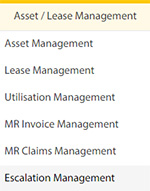 |
| 4. | Select the Engine tab. |  |
| 5. | Hover the Control button and click on the Manage Email Templates. | 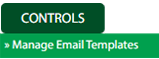 |
| 6. | Select the Client in the dropdown list |  |
How do I add manage email templates list in the engine?
| 1. | Login to your account using the username and password provided. | |
| 2. | Hover on Asset / LeaseManagement tab. | |
| 3. | Select the Escalation Management. | |
| 4. | Select the Engine tab. | |
| 5. | Hover the Control button and click on the Manage Email Templates. | |
| 6. | Select the Client in the dropdown list | |
| 7. | Click on the Add button on the top right side of the page. |  |
| 8. | Fill the required fields in the form. |  |
| 9. | Click on the Save button once you fill the required fields. |  |
| 10. | After save the popup comes for success full message in it. | 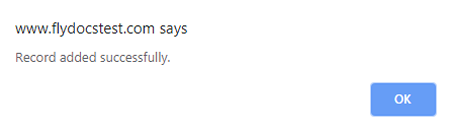 |
How do I edit manage email templates list in the engine?
| 1. | Login to your account using the username and password provided. | |
| 2. | Hover on Asset / LeaseManagement tab. | |
| 3. | Select the Escalation Management. | |
| 4. | Select the Engine tab. | |
| 5. | Hover the Control button and click on the Manage Email Templates. | |
| 6. | Select the Client in the dropdown list | |
| 7. | Click on the Edit button on the top right side of the page. |  |
| 8. | Edit the required fields in the form. | |
| 9. | Click on the Save button once you fill the required fields. | |
| 10. | After save the popup comes for success full message in it. | |
How do I delete manage email templates list in the engine?
| 1. | Login to your account using the username and password provided. | |
| 2. | Hover on Asset / LeaseManagement tab. | |
| 3. | Select the Escalation Management. | |
| 4. | Select the Engine tab. | |
| 5. | Hover the Control button and click on the Manage Email Templates. | |
| 6. | Select the Client in the dropdown list | |
| 7. | Select the row which you want to delete |  |
| 8. | Click on the Delete button on the top right side of the page. |  |
| 9. | Once you delete the popup comes for the confirmation to data will delete or not. | 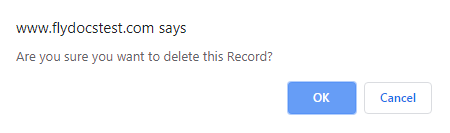 |
| 10. | After another popup comes for success full message in it. | |
How do I view Audit Trail to manage the email templates list in the engine?
| 1. | Login to your account using the username and password provided. | |
| 2. | Hover on Asset / LeaseManagement tab. | |
| 3. | Select the Escalation Management. | |
| 4. | Select the Engine tab. | |
| 5. | Hover the Control button and click on the Manage Email Templates. | |
| 6. | Select the Client in the dropdown list | |
| 7. | Click on the Audit Trial button. |  |
| 8. | Select filter types to filter the Audit Trail Report. |  |
| 9. | Click on the Filter button to show filtered data into the grid. |  |
How do I view Audit Trail data export in manage email templates list in the engine?
| 1. | Login to your account using the username and password provided. | |
| 2. | Hover on Asset / LeaseManagement tab. | |
| 3. | Select the Escalation Management. | |
| 4. | Select the Engine tab. | |
| 5. | Hover the Control button and click on the Manage Email Templates. | |
| 6. | Select the Client in the dropdown list | |
| 7. | Click on the Audit Trial button at the top. | |
| 8. | Select filter types to filter the Audit Trail Report. | |
| 9. | Click on the Filter button to show filtered data into the grid. | |
| 10. | Click on the Export button at the top. |  |
| 11. | It will show you Popup asking whether you want to open or save the file. |  |
Lauren Partridge
Comments