|
Table of Contents : |
| 1. | Login to your account using the username and password provided. | |
| 2. | Hover over the Masters tab. |  |
| 3. | Hover over the Contract Management and Click on Milestone tab. |  |
| 4. | Select Client, Centre and Other Required field. |  |
| 5. | Select Template Type from list. | 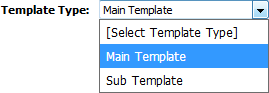 |
| 6. | Click the asset from the grid for which you want to see Manage Work Status List. The row will become highlighted once selected. |  |
| 7. | Click on MANAGE WORK STATUS LIST button. It will open Manage Work Status List in a new window. |  |
| 8. | Click on ADD button add Work Status. |  |
| 9. | Enter Status Title and Other required fields. |  |
| 10. | Click on SAVE button to add Transaction Document Template. |  |
| 1. | Login to your account using the username and password provided. | |
| 2. | Hover over the Masters tab. | |
| 3. | Hover over the Contract Management and Click on Milestone tab. | |
| 4. | Select Client, Centre and Other Required field. | |
| 5. | Select Template Type from list. | |
| 6. | Click the asset from the grid for which you want to see Manage Work Status List. The row will become highlighted once selected. | |
| 7. | Click on MANAGE WORK STATUS LIST button. It will open Manage Work Status List in a new window. | |
| 8. | Click the asset from the grid. The row will become highlighted once selected. | |
| 9. | Click on EDIT button. |  |
| 10. | Enter Status Title and Other required fields. | |
| 11. | Once you edit the record Click on SAVE button to save the record. |  |
| 1. | Login to your account using the username and password provided. | |
| 2. | Hover over the Masters tab. | |
| 3. | Hover over the Contract Management and Click on Milestone tab. | |
| 4. | Select Client, Centre and Other Required field. | |
| 5. | Select Template Type from list. | |
| 6. | Click the asset from the grid for which you want to see Manage Work Status List. The row will become highlighted once selected. | |
| 7. | Click on MANAGE WORK STATUS LIST button. It will open Manage Work Status List in a new window. | |
| 8. | Click the asset from the grid. The row will become highlighted once selected. | |
| 9. | Click on DELETE button. |  |
| 10. | It will show you Pop up message to delete Work Status. Click on OK button. | 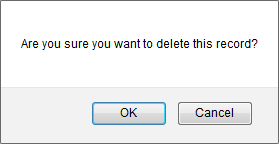 |
|
Note:- If you do not see this option appear it is due to access restrictions for your user account. please contact an administrator. |
Lauren Partridge
Comments