How do I preview compared CSV file in Landing Gear Centre?
| 1. |
Login to your account using the username and password provided. |
|
| 2. |
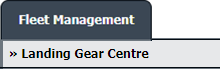
Hover over the Fleet Management tab and Click on Landing Gear Centre Tab. |
 |
| 3. |
Select the asset from the grid. |
 |
| 4. |
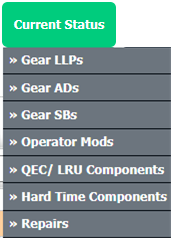
Hover over the Current Status dropdown and Select any tab from the dropdown. It will open new window.
|
 |
| 5. |
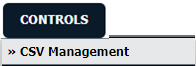
Hover over the CONTROLS dropdown and Click on the CSV Management option. It will open a new window. |
 |
| 6. |
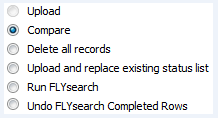
Select Compare option. |
 |
| 7. |
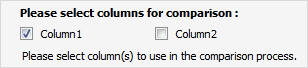
Select Columns that you want to compare by ticking tick box. |
 |
| 8. |
Select the file to upload |
 |
| 9. |
Click on UPLOAD button. |
 |
| 10. |
It will show you columns selected for comparison in the grid. At the right side, Click on CONTINUE or PREVIEW button.
Notes: If you click on PREVIEW button, it will download the compared file, so that you can check the changes.
|
 / / |
| 11. |
Click on DOWNLOAD REPORT button. |
 |
| 12. |
It will ask you to view or save Excel sheet. This Excel sheet will show you compared information. |
 |
|
Lauren Partridge
Comments