|
Table of Contents : |
| 1. | Login to your account using the username and password provided. | |
| 2. | Hover over the Fleet Management tab and click on Engine Centre option. |  |
| 3. | Click on Engine Module Fleet tab. |  |
| 4. | Select the asset from the grid. |  |
| 5. | Hover on the Current Status and select Engine Module LLPs. |  |
| 6. | Click on view icon of row to view inner documents. It will open new window. |  |
| 7. | In the new window, Select documents that you want to copy. |  |
| 8. | Select required Attach Type from the list and other required fields. |  |
| 9. | Hover over the Manage Documents dropdown and Click on Copy option. It will open new window. |  |
| 10. | Select one or multiple rows in which you want to copy document. |  |
| 11. | Click on the COPY button. |  |
| 12. | After clicking on Copy button, If same filename document is already present then it will show a pop-up message. If you still want to continue the copy process then click on OK button, then the copy process will be done. | 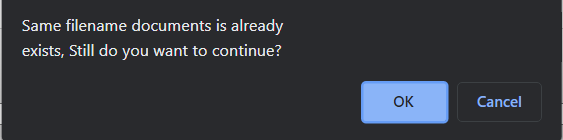 |
| 13. | It will show you Popup window. Click on the OK button. |  |
Lauren Partridge
Comments