|
Table of Contents : |
| 1. | Login to your account using the username and password provided. | |
| 2. | Hover over the Fleet Management tab then Hover over the FLYlog Book Centre Tab and Click on Manage By Asset tab. | 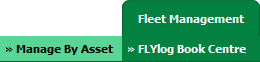 |
| 3. | Select Engine Log book tab. |  |
| 4. | Select asset from the grid. The row will become highlighted once selected and Click on View icon. It will open Engine Log Book in a new window. | 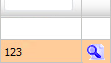 |
| 5. | Select the row for which you want to view document and Click on View icon. It will open new window. | |
| 6. | Select the document from the particular group, which you want to replace. | 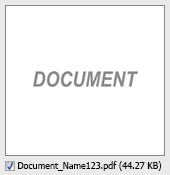 |
| 7. | Click on replace button, It will open new window. | 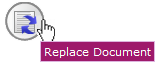 |
| 8. | Click on add button to add document that you want to replace. |  |
| 9. | Click on upload button to upload document. |  |
Lauren Partridge
Comments