|
Table of Contents : |
How do I search documents in a MCC?
| 1. | Login to your account using the username and password provided. | |
| 2. | Hover over the Fleet Management tab then Hover over the Engine Centre tab and Click on Engine Fleet Status tab. |  |
| 3. | Select the record from the grid. |  |
| 4. | Hover over the Maintenance Status button and Click on the Engine History button. It will open new window. NOTE: The Maintenance Status button will become active once an engine record has been selected. |
 |
| 5. | Select MCC View. |  |
| 6. | Click on SHOW button. It will load respective view into grid. |  |
| 7. | Go to the grid record and click on search icon for MCC search. It will open a new window. |  |
| 8. | Once Box Search page is open then Go to Keyword or multiple keyword used for search particular document/documents. |  |
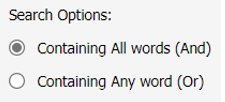
| 9. | Select any one option from below. 1) Containing All words (And) 2) Containing Any word (Or) |
 |
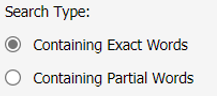
| 10. | Select any one option from below. 1) Containing Exact Words 2) Containing Partial Words |
 |
| 11. | Set Archived Options and Search Category for make more option to make search. | 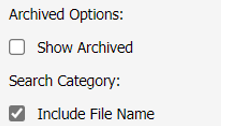 |
| 12. | Click on the SEARCH button. The results will appear at the bottom of the page. |  |
Lauren Partridge
Comments