|
Table of Contents : |
How do I view report for FLYdoc template group field name?
| 1. | Login to your account using the username and password provided. | |
| 2. | Hover over the Commercial Management tab then Hover over the Legal and Financial Centre and Click on Contract Management tab. |  |
| 3. | Click on ENGINE CENTRE button. |  |
| 4. | Hover over Reports button and Click Contract Information Report tab. It will open new window. | 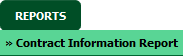 |
| 5. | Select Client and Date Column from the list. |  |
| 6. | Select Include Subsidiary, Column and other required details from the list. |  |
| 7. | Tick the checkbox "Include FLYdoc Infornation" and fill required details. |  |
| 8. | Click on FILTER button. It will load data into grid. |  |
How do I export report for FLYdoc template group field name?
| 1. | Login to your account using the username and password provided. | |
| 2. | Hover over the Commercial Management tab then Hover over the Legal and Financial Centre and Click on Contract Management tab. | |
| 3. | Click on ENGINE CENTRE button. | |
| 4. | Hover over Reports button and Click Contract Information Report tab. It will open new window. | |
| 5. | Select Client and Date Column from the list. | |
| 6. | Select Include Subsidiary, Column and other required details from the list. | |
| 7. | Tick the checkbox "Include FLYdoc Infornation" and fill required details. | |
| 8. | Click on FILTER button. It will load data into grid. | |
| 9. | For exporting the data available on screen, SelectEXPORT button. |  |
| 10. | It will show you Popup asking whether you want to open or save file. |  |
How do I generate report for FLYdoc template group field name for all FLYdoc fields?
| 1. | Login to your account using the username and password provided. | |
| 2. | Hover over the Commercial Management tab then Hover over the Legal and Financial Centre and Click on Contract Management tab. | |
| 3. | Click on ENGINE CENTRE button. | |
| 4. | Hover over Reports button and Click Contract Information Report tab. It will open new window. | |
| 5. | Select Client and Date Column from the list. | |
| 6. | Select Include Subsidiary and Select Column from the list. | |
| 7. | Tick the checkbox "Include FLYdoc Infornation" and fill required details. | |
| 8. | Click on the VIEW REPORT button. |  |
| 9. | It will show you Popup asking whether you want to open or save file. | |
|
Note:- If you do not see this option appear it is due to access restrictions for your user account. please contact an administrator. |
Lauren Partridge
Comments