|
Table of Contents : |
How do I upload a documents in General Component Manage by Date Section?
| 1. | Login to your account using the username and password provided. | |
| 2. | Hover on the Fleet Management then Hover on the Maintenance Control Centre and Click on Manage By Date Tab. |  |
| 3. | Click on the GENERAL COMPONENTS button. |  |
| 4. | Select Release Certs Tab or Workshop Strip Reports Tab for which you want to open document. |  |
| 5. | Select Client from dropdown list. |  |
| 6. | Select Audit View from the list. It will load records into grid. | 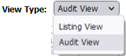 |
| 7. | Go to end of the date record from grid that you want to access and Click on the view icon. It will open a new window. (E.g As shown in image 26th March 2018 date record is selected.) | 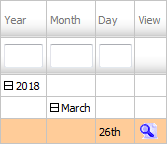 |
| 8. | Once new window is open, Go to end of the record that you want to access and Click on the view icon. It will open a new window. |  |
| 9. | Click on UPLOAD DOCUMENTS button. It will open one Popup. |  |
| 10. | Click the 'Group' name (the document type) of which the new documents are associated to. |  |
| 11. | Select Upload Options. | 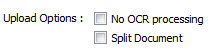 |
| 12. | Click on add button to add document that you want to replace. Note: Each file must be below 20MB. |
 |
| 13. | Locate your document from Inventory. |  |
| 14. | Click on UPLOAD Button to Upload document. |  |
| Note:- If you do not see this option appear it is due to access restrictions for your user account. please contact an administrator. |
Lauren Partridge
Comments