|
Table of Contents : |
How do I add Meta Data to my Documents in a Hyperlinked row?
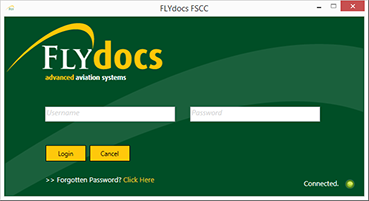
| 1. | Login to your account using the username and password provided. Note: These login details will be the same as the FLYdocs web platform. |
 |
| 2. | Select a Client from the Client dropdown and then select 'OK'. | 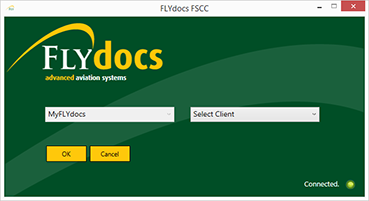 |
| 3. | Select the tab Scan at Source at the top of the application. |  |
| 4. | Select the sub tab for 'Template Scanning'. |  |
| 5. | Select a particular centre. |  |
| 6. | Select a component type and component from the combo boxes provided. Note: Selection of both fields are mandatory. |
 |
| 7. | The page will then update listing the Records Library for component selected. | 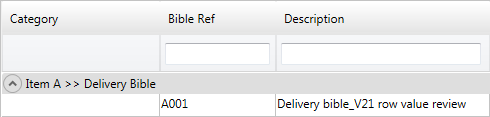 |
| 8. | Select the 'View' icon at the right side of the component row to enter the Box/ Folder level window for the selected component. |  |
| 9. | Once new window will open, Double click on the Folder Name. It will open that folder in a new window. |  |
| 10. | Select the document you want to move to another location. |  |
| 11. | Then at the top of the window select the 'Edit Meta Data' option within the 'Actions' dropdown at the top of the window. | 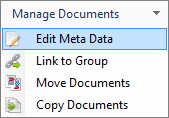 |
| 12. | Selecting this option will open a panel at the bottom of the screen. | 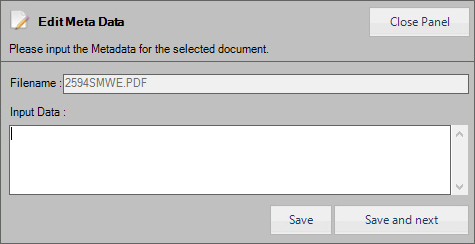 |
| 13. | Within this panel you will be able to input the meta data text you want to add to this document within the 'Metadata' text box. |  |
| 14. | Once you have inputted the metadata for the selected document, Click on SAVE button to save the metadata you have added. |  |
| 15. | OR click on SAVE AND NEXT button, to save the changes you have made to the selected document and move to the next document within the grid. |  |
| 16. | Selecting either of the save options will save the meta data you have inputted and will be uploaded along with your documents. |  |
| Note:- If you do not see this option appear it is due to access restrictions for your user account. please contact an administrator. |
Lauren Partridge
Comments