|
Table of Contents : |
| 1. | Login to your account using the username and password provided. | |
| 2. | Hover over the Fleet Management tab and click on Engine Centre option. | 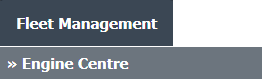 |
| 3. | Click on Engine Module Fleet tab. |  |
| 4. | Select the asset from the grid. |  |
| 5. | Hover on the Current Status and select Engine Module LLPs. | 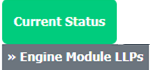 |
| 6. | Click on view icon of a row. It will open new window. |  |
| 7. | Go to Internal Notes section where you can view Internal Notes assigned to you. | 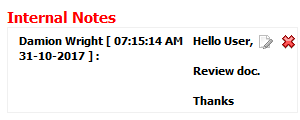 |
| 1. | Login to your account using the username and password provided. | |
| 2. | Hover over the Fleet Management tab and click on Engine Centre option. | 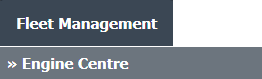 |
| 3. | Click on Engine Module Fleet tab. |  |
| 4. | Select the asset from the grid. | |
| 5. | Hover on the Current Status and select Engine Module LLPs. | 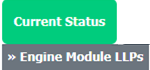 |
| 6. | Click on view icon of a row. It will open new window. | |
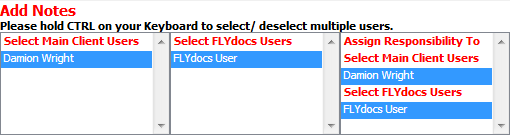
| 7. | Go to the bottom of the page for "Internal Notes" select the required user(s) from the selection box, then below the selection boxes, type of note. Note: Use the CTRL key on your keyboard to select multiple users. |
 |
| 8. | Enter your note. | 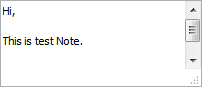 |
| 9. | Click on the button 'SAVE INTERNAL NOTES'. Note: This note will not generate an email, instead, your message will appear in the recipient FLYdocs 'Inbox' page. |
 |
| 1. | Login to your account using the username and password provided. | |
| 2. | Hover over the Fleet Management tab and click on Engine Centre option. | 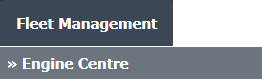 |
| 3. | Click on Engine Module Fleet tab. |  |
| 4. | Select the asset from the grid. | |
| 5. | Hover on the Current Status and select Engine Module LLPs. | 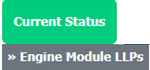 |
| 6. | Click on view icon of a row. It will open new window. | |
| 7. | It will open new window. Go to Internal Notes section where you have entered your note. | |
| 8. | Click on edit icon. It will enable your note into textarea. |  |
| 9. | Enter your note. | |
| 10. | Edit your note and Click on UPDATE button. It will update your comment. |  |
How do I delete Internal Notes?
| 1. | Login to your account using the username and password provided. | |
| 2. | Hover over the Fleet Management tab and click on Engine Centre option. | 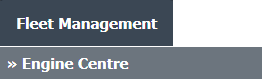 |
| 3. | Click on Engine Module Fleet tab. |  |
| 4. | Select the asset from the grid. | |
| 5. | Hover on the Current Status and select Engine Module LLPs. | 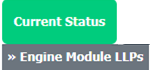 |
| 6. | Click on view icon of a row. It will open new window. | |
| 7. | It will open new window. Go to Internal Notes section where you have entered your note. | |
| 8. | Click on delete icon. |  |
| 9. | It will show you pop up message. Click on OK button to delete your note. |  |
| Note:- If you do not see this option appear it is due to access restrictions for your user account. please contact an administrator. |
Lauren Partridge
Comments