|
Table of Contents : |
How do I view documents by Previous Date?
| 1. | Login to your account using the username and password provided. | |
| 2. | Hover over the Reports then Hover over the FLYdocs Processing Reports and Click on the FSCC Reports tab. | 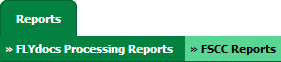 |
| 3. | Select Client from the list. |  |
| 4. | Select Daily Scanning from the list. | 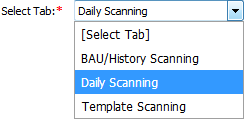 |
| 5. | Select Centre and Type from the list then select other relevant details. |  |
| 6. | Click on the VIEW button. It will load data into grid. |  |
| 7. | Select record from the grid then Go to end of that record and Click on the view icon. It will open a new window. | 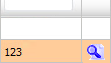 |
| 8. | Click on GO TO PREVIOUS DATE button. It will open Previous Date documents into same window. |  |
| 9. | Go to document section and Click on the document title which you want to view. It will open that document in a new window. |  |
How do I view documents by Next Date?
| 1. | Login to your account using the username and password provided. | |
| 2. | Hover over the Reports then Hover over the FLYdocs Processing Reports and Click on the FSCC Reports tab. | |
| 3. | Select Client from the list. | |
| 4. | Select Daily Scanning from the list. | |
| 5. | Select Centre and Type from the list then select other relevant details. | |
| 6. | Click on the VIEW button. It will load data into grid. | |
| 7. | Select record from the grid then Go to end of that record and Click on the view icon. It will open a new window. | |
| 8. | Click on GO TO NEXT DATE button. It will open Next Date documents into same window. |  |
| 9. | Go to document section and Click on the document title which you want to view. It will open that document in a new window. | |
Lauren Partridge
Comments