|
Table of Contents : |
How to show deleted Document Group?
| 1. | Login to your account using the username and password provided. | |
| 2. | Hover over the Fleet Management tab and Click on Landing Gear Centre Tab. | 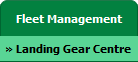 |
| 3. | Click on the Landing Gear Sub-Assembly Fleet tab. | 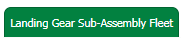 |
| 4. | Select the record from the grid. |  |
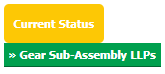
| 5. | Hover over the Current Status dropdown and Select Gear Sub-Assembly LLPs option from the dropdown. It will open new window. |
 |
| 6. | Hover over the CONTROLS dropdown and Click on the Manage Document Groups option. It will open a new window. | 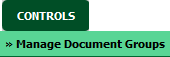 |
| 7. | Click on the SHOW DELETED button. It will load data in grid. |  |
| 8. | It will show you all document groups with deleted document group. |  |
How to reload deleted Document Group?
| 1. | Login to your account using the username and password provided. | |
| 2. | Hover over the Fleet Management tab and Click on Landing Gear Centre Tab. | |
| 3. | Click on the Landing Gear Sub-Assembly Fleet tab. | |
| 4. | Select the record from the grid. | |
| 5. | Hover over the Current Status dropdown and Select Gear Sub-Assembly LLPs option from the dropdown. It will open new window. |
|
| 6. | Hover over the CONTROLS dropdown and Click on the Manage Document Groups option. It will open a new window. | |
| 7. | Click on the SHOW DELETED button. It will load data in grid. | |
| 8. | It will show you all document groups with deleted document group. Select deleted document group row which you want to reload. | |
| 9. | Click on the RELOAD button. |  |
| 10. | It will show you Popup window. Click on the OK button. | 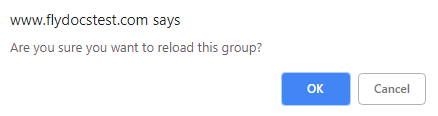 |
| 11. | It will show you Popup window. Click on the OK button. | 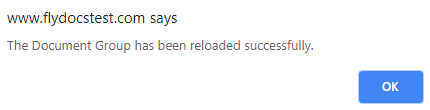 |
Lauren Partridge
Comments